

You bought a gaming laptop for smooth performance, yet your frames still drop during the exact moments that matter most. Your ping spikes when a match gets competitive. Background apps quietly eat your CPU and RAM while you play. Heat builds up during long sessions, and your laptop throttles itself to survive.
Outdated drivers cause random stutters or crashes that make no sense on paper. If any of this sounds familiar, you are dealing with problems that hardware alone cannot fix. That is where a proper Game Booster comes in, and I want to walk you through why Smart Game Booster has become my go-to tool for keeping a gaming laptop stable under pressure.
Smart Game Booster at a Glance
Before diving into the features, here's the basic rundown worth knowing about this tool.
- Smart Game Booster comes from iTop Inc., a developer known for building practical PC utility software.
- The current version is 6.0. Its file size is compact at 88 MB.
- This program acts as freeware, meaning that there is no cost to download and utilize the program.
- It effectively resolves common gaming issues, including frame drops, lag, high latency, compatibility errors, and security risks.
Why Smart Game Booster Is the Best Game Booster for Gaming Laptops
Six features stood out during testing, each one tackling a specific problem that gaming laptops run into on a regular basis.
FPS Booster: Free Up CPU and RAM for Better FPS
Gaming laptops often run numerous background processes, including update services, chat apps, browsers, and other utilities that consume CPU and RAM while you play. Smart Game Booster works as an FPS booster by helping free these resources for your games. I tested the PC Boost feature, and it closed unnecessary background processes with a single click, giving the game more system resources to work with.
This directly helps with a few common issues:
- FPS drops during intense fights or busy scenes.
- Random crashes that show up without warning.
- Background apps eating resources you never notice until it's too late.
Auto Boost takes this a step further by detecting when a game launches and switching into gaming mode automatically, so optimizing before a match becomes one less thing to remember.
Reduce Ping With 500 Plus Game Servers
FPS gets most of the attention in gaming laptop reviews, but ping matters just as much for online play. The new Ping Reducer feature connects players to more than 500 game servers worldwide through dedicated game lines. This setup brings a few clear benefits:
- Lower latency during competitive matches.
- Reduced packet loss on unstable connections.
- Fewer slowdowns during peak-hour congestion.
- Cross-region connectivity that reaches servers otherwise blocked or restricted in certain areas.
Boost GPU and VRAM Performance
Super Boost overclocks the GPU and VRAM to push more performance out of existing hardware. According to iTop, this can raise PC performance by up to 30%, and I noticed a real difference during a demanding session in Valorant, where visuals stayed sharp even as the action got hectic.
One caveat matters here, though. Overclocking raises heat output, so laptop users should keep an eye on temperatures while this feature is active, since laptops have far less room to dissipate heat than desktop towers.
Keep Gaming Temperatures Under Control
The CPU and GPU Temperature Monitor tracks CPU temperature, GPU temperature, memory usage, and other hardware stats while gaming is happening. This matters enormously for laptops because thermal throttling can quietly wreck a frame rate without any obvious warning sign.
Monitor Tune complements this by letting users apply display presets like Gaming Mode in seconds, adjusting the screen for whatever task is at hand.
Check Game Compatibility Before You Install
Can I Run, It solves a problem before it even starts. The database covers more than 160,000 games, 3,000-plus GPU models, and 9,000-plus CPU models.
Checking whether a laptop handles a demanding title before downloading it saves both storage space and disappointment, something I wish I had done before a few failed installs of my own.
Maintain Drivers and Game Performance
This Game Booster also includes Driver Update, System Clean, System Tweak, and Game Defrag tools.
These handle routine maintenance tasks that keep a system running smoothly over time, without requiring much manual effort along the way.
How to Use Smart Game Booster for Gaming
Getting started takes only a few minutes.
Step 1. Download and Install Smart Game Booster
Getting Smart Game Booster onto my Windows gaming laptop only took a couple of minutes: download, install, done.
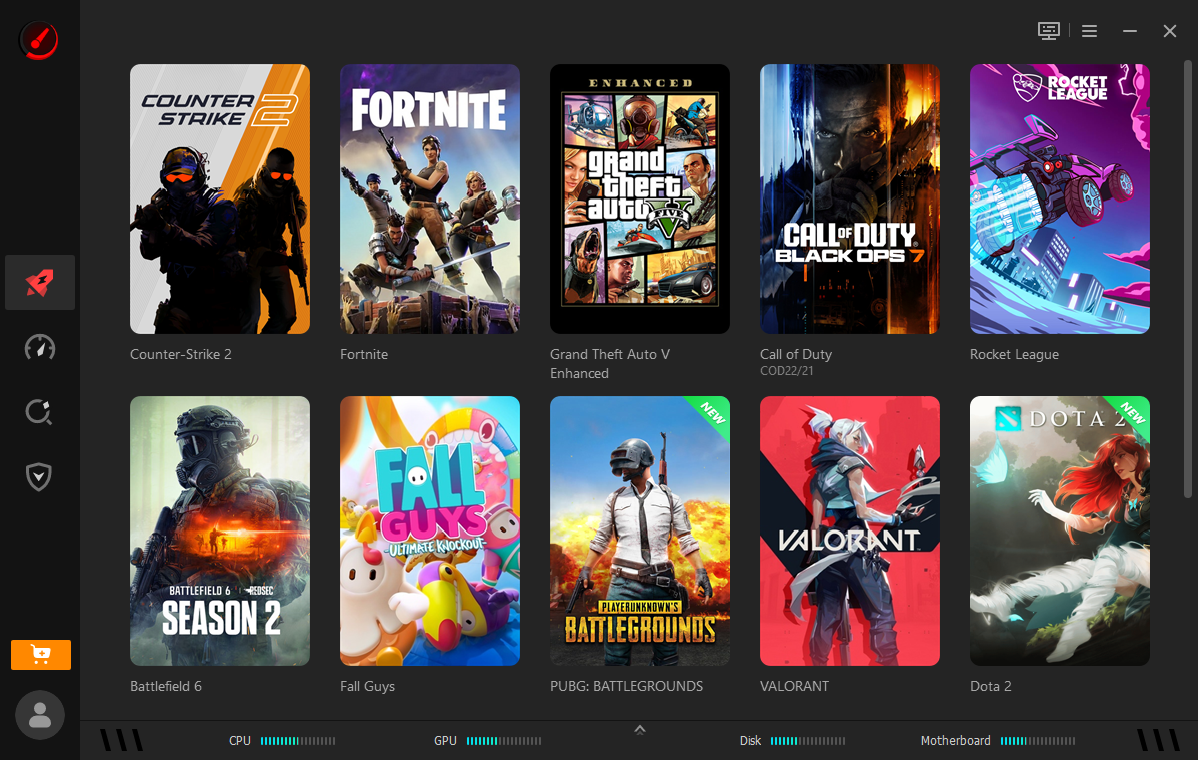
Step 2. Open the Software and Select Your Game
The app opened straight to a game list, and picking the title I wanted to optimize took barely any thought.
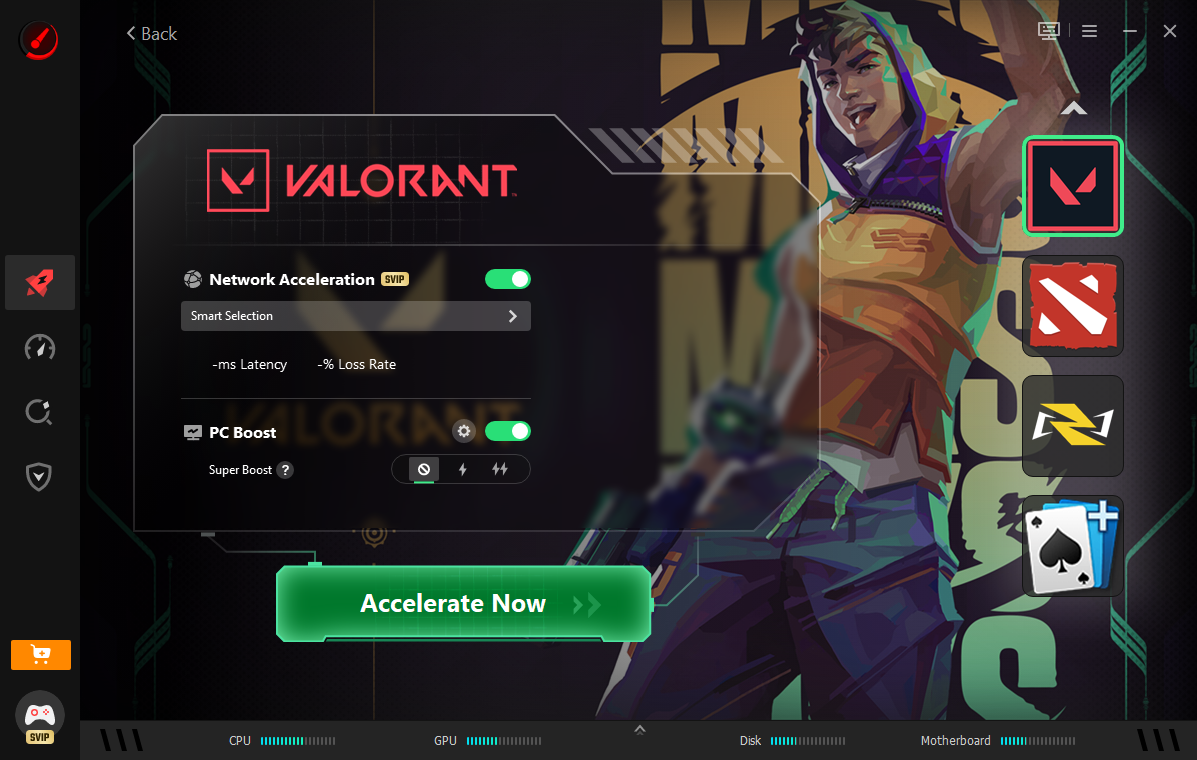
Step 3. Start Boost to Free Up Resources
One click on Boost cleared out the background clutter sitting on my system, and the extra room it gave the game was noticeable almost immediately.
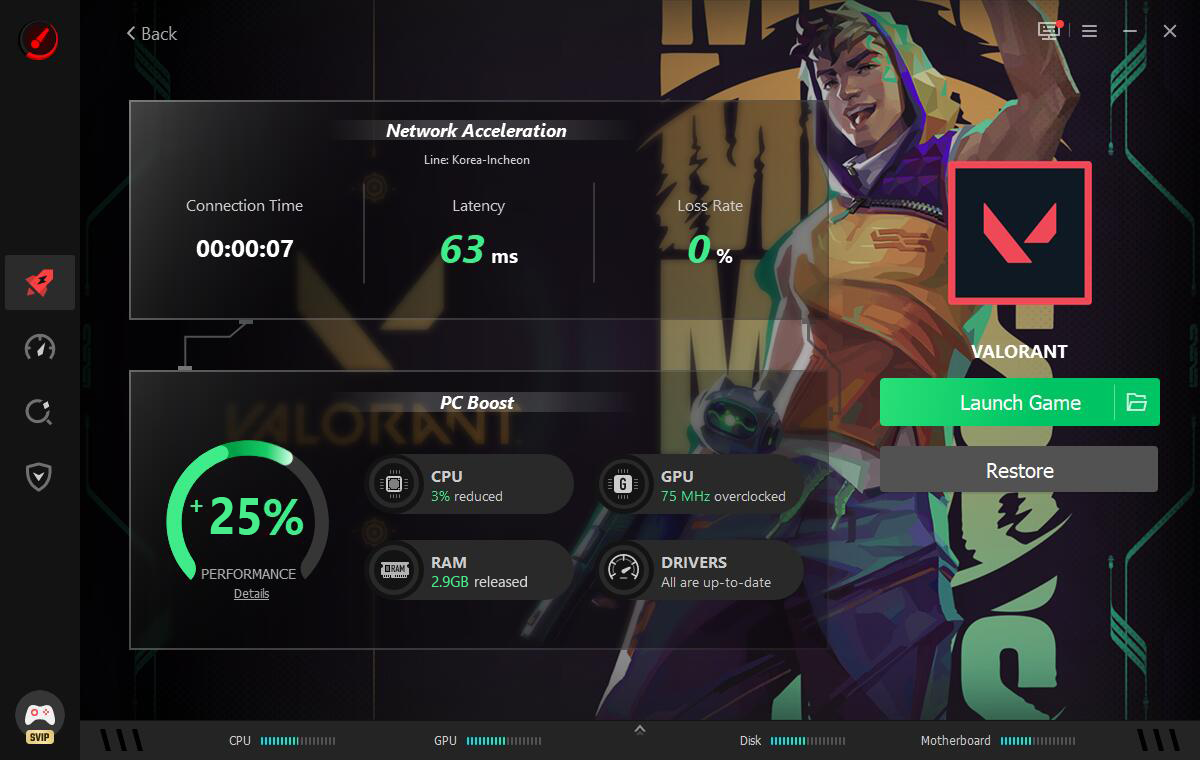
Step 4. Turn on Network Acceleration and Monitor Performance
Network Acceleration made online play feel noticeably smoother, and watching my FPS and hardware temperatures during the session backed that up with real numbers.
Is a Smart Game Booster Worth Using on a Gaming Laptop?
Curious whether a single tool can actually fix FPS drops, laggy matches, and overheating all at once? After testing it across different games, I found the answer leans heavily toward yes.
Smart Game Booster won't turn a low-end laptop into a gaming rig, but it clears out the resource drain, network lag, and thermal guesswork that quietly ruin sessions on capable hardware.
If background apps, high ping, or driver issues have been holding your gameplay back, stop guessing and fix it directly. Try Smart Game Booster today and feel the difference the next time you queue up.
