

Running your first Gimkit session can feel a little intimidating if you have never sat in the host seat before. Between question kits, game modes, and live dashboards, there is a lot happening on screen at once. The good news is that once you understand the basic flow, hosting becomes second nature, and most teachers are running smooth games within their first attempt.
A Gimkit host is the teacher, presenter, or group leader who creates a question set (called a kit), launches a live or asynchronous game session, and manages that session from a dashboard while players compete to earn in-game currency.
What Is a Gimkit Host?
The host is the person in charge of a Gimkit game. That means building or selecting the kit, choosing the game mode, setting the rules, and starting the session. Once the game begins, the host controls the pace from a live dashboard, watching scores update, monitoring accuracy, and stepping in if something needs adjusting.
Hosting is different from playing. Players join with a code and answer questions on their own devices. The host never answers questions themselves. Instead, they act more like a game show operator, keeping things moving, reading the room, and reviewing the results once the game wraps up.
Teachers are the most common hosts, but Gimkit works just as well for tutors, corporate trainers, coaches, and parents running a review session at home. Anyone who needs an engaging way to test knowledge can step into the host role.
How to Create Your Gimkit Account
Before you can host anything, you need an Educator account. Here is the quick version:
- Go to gimkit.com and click the sign up button.
- Choose to sign up with Google, Microsoft, or an email address.
- Select the Educator option rather than Student, since only Educator accounts can create kits and host games.
- Fill in your basic details and verify your email if asked.
- Take the short onboarding tour, which points out where kits, classes, and reports live on your dashboard.
Every new Educator account starts with a free trial period of Gimkit Pro, so you get to test premium features right away. After the trial ends, you can keep using the free Gimkit Basic tier for as long as you like, since it does not cost anything to maintain an account. Hosting, kit creation, and game reports are all available on the free plan without a time limit.
Read our trending articles to stay updated with the latest online trends and guides.
Starting Ahead: Your First Hosting Mission
Your very first session does not need to be complicated. Pick a small, low pressure topic you already know well, something like a vocabulary review or a quick trivia set on a subject your group already covers. Keep the question count between ten and twenty for your debut game. This gives you enough content to see how the pacing feels without dragging the session out.
Before going live with a real group, run a solo test. Open the kit, click host, and preview the game as if you were a player. This lets you catch typos, confirm answer choices are correct, and get comfortable with where the start, pause, and end buttons live on the dashboard. A five minute test run saves a lot of stress once actual players are in the game.
Gimkit host without login
A common question from new users is whether you can host a Gimkit game without logging in. The short answer is no, hosting always requires an account, since the platform needs somewhere to save your kits, track class reports, and store your settings. What does not require login is joining.
This distinction matters for classroom setup. If your students are younger or you want to avoid the hassle of managing dozens of new accounts, you can run entire units using guest join while you, the host, remain the only person with a login. It keeps friction low for participants while giving you full control over kits and data.
There is also a lightweight option worth knowing about. Some hosts use KitCollab, a feature that lets participants contribute questions to a kit through a shared link, again without needing their own accounts. It is a nice way to build a review kit collaboratively before the actual game even starts.
How to Build a Kit (Your Question Set)
A kit is the foundation of every Gimkit game. Without solid questions, even the flashiest game mode falls flat. You have a few ways to build one:
- Manual entry: Type questions and answer choices directly into the kit builder. Best for highly specific or original content.
- Question Bank search: Browse a large library of existing, educator created questions and pull relevant ones into your kit instead of writing everything from scratch.
- Import from Quizlet or a spreadsheet: Paste a Quizlet set link or upload a CSV file to convert existing flashcards into a ready to use kit in seconds.
- KitCollab: Let your class or team submit questions themselves, which is a great review activity on its own.
When writing questions, aim for clarity over cleverness. Short, direct wording works better than long paragraphs, especially since players are often racing against a timer or trying to earn in game currency quickly. Mix question types where the game mode allows it, including multiple choice, true or false, and short answer, to keep the mental effort varied.
How to Host a Live Gimkit Game (Step by Step)
Once your kit is ready, launching a live game follows a predictable pattern:
- Log into your dashboard and open the kit you want to use.
- Click Play Live.
- Choose your game mode from the list of available options.
- Configure settings such as team size, question order, time limits, and shop or power up rules.
- Click Continue to generate your join code and QR code.
- Share the code with your group, either by displaying it on a shared screen or reading it aloud.
- Wait in the lobby until enough players have joined, then click Start.
Most devices with a modern browser can host or join, including laptops, tablets, and phones, so you rarely need to worry about compatibility. Hosting has also become far more mobile friendly in recent versions of the platform, meaning you are not stuck behind a desktop the entire time. You can walk around the room with a tablet, monitor the dashboard, and still control the game from wherever you are standing.
Choosing the Right Game Mode
Gimkit offers a growing library of game modes, and picking the right one changes the entire feel of a session. Here are four of the most popular options for new hosts.
Classic Mode
This is the original Gimkit format, often described as a race to the top. Players answer questions to earn virtual money, then spend that money on upgrades like multipliers or streak bonuses. It is a safe, dependable choice for a first session because the rules are simple and the pacing is entirely question driven.
Fishtopia
A relaxed, self paced mode where correct answers earn bait, which players use to catch fish and sell them for cash. There is no elimination mechanic, so it works well for any class size and suits students who get anxious about being knocked out of a game early.
Tag Domination
A team based mode where correct answers generate energy that players use to tag members of the opposing team and capture territory. It rewards accuracy and quick thinking, and tends to bring out a lot of energy in the room, so it works best with groups that handle competitive excitement well.
Snowbrawl
Another team mode, this one frantic and fast paced. Correct answers earn snowballs, which teams use to try to eliminate the opposing side. It is a favorite for review days before a break or holiday, since the format naturally feels festive.
Kits Gimkit
The term kits Gimkit simply refers to the question sets that power every game on the platform. Every kit is reusable, meaning you can host the same kit repeatedly across different classes, game modes, or even different school years without rebuilding it. Kits can also be organized into folders, shared with co-teachers, or duplicated and edited for a new topic.
2D Game Modes
2D modes place players inside an animated map instead of a plain answer screen. Correct answers earn in-game resources, which players then use to interact with the environment, whether that means fishing, tagging opponents, or surviving an obstacle. These modes are the only formats that reward experience points toward cosmetic unlocks, which adds a layer of long term motivation for repeat players.
Pro Exclusive Modes
Some of the newer and more elaborate 2D and platformer modes are locked behind a Gimkit Pro subscription, along with the full cosmetic library of character skins, trails, and stickers. Free accounts still get solid access to several 2D modes and can earn experience within them, but Pro widens the catalog rather than changing how any individual mode plays.
Managing the Game as a Host
Once a game is live, your dashboard becomes mission control. From there you can typically:
- Pause the game if you need to explain a concept or handle a classroom interruption
- Freeze or remove an individual player if needed
- Adjust the timer or question order mid game in some modes
- Watch a live leaderboard update as players earn points
- Monitor which questions are giving your group the most trouble in real time
Good hosting is less about clicking buttons and more about reading the room. If accuracy on a specific question is dropping across the board, that is a signal to pause and reteach on the spot rather than waiting until the game ends.
Reviewing Results After the Game
After a session wraps up, Gimkit generates a report covering both class wide and individual performance. You can view this immediately or come back to it later, and most hosts can export it as a PDF for record keeping or to share with a co-teacher.
Reports typically break down:
| Data Point | What It Shows |
| Overall accuracy | How the group performed question by question |
| Individual scores | Each player’s results and earnings |
| Weakest questions | Which items had the lowest correct response rate |
| Time spent | How long players took per question, useful for spotting pacing issues |
Reviewing this data is one of the most overlooked parts of hosting. It is tempting to end the game and move on, but a two minute scan of the weak question list tells you exactly what to reteach tomorrow.
Free Plan vs. Gimkit Pro
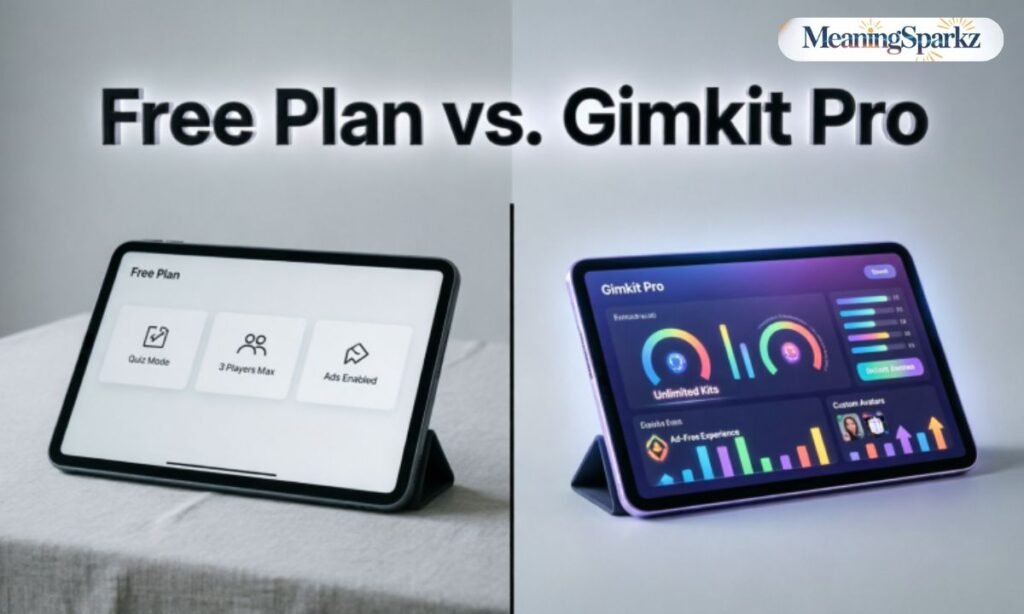
Deciding whether to stick with the free tier or upgrade depends on how often you host and how much variety you want.
| Feature | Free (Basic) | GimKit Pro |
| Host live games | Yes, unlimited | Yes, unlimited |
| Create and manage kits | Yes | Yes |
| Game reports | Yes | Yes, with deeper analytics |
| Access to all 2D game modes | Limited selection | Full catalog |
| Cosmetic library | Limited | Full access |
| Player limit per session | Lower cap | Higher cap |
| Question bank access | Standard | Expanded |
For occasional hosts running review games a few times a month, the free plan is usually enough. For teachers hosting daily or weekly, Pro tends to pay for itself through the wider mode selection and higher player limits, especially in larger classrooms.
Expand Your Gimkit Hosting Toolkit
A few extras are worth knowing once you are past your first few sessions:
- Classes: Group your players into a class roster so you can assign homework mode kits and track progress over time rather than starting fresh every session.
- Assignments: Assign a kit for players to complete at their own pace outside of a live session, useful for homework or makeup work.
- KitCollab: Crowdsource question writing from your group before a big review day.
- Import tools: Save time by pulling existing flashcards or spreadsheets directly into a new kit instead of typing everything manually.
Combining these tools turns Gimkit from a one-off game into an ongoing part of how you review and assess material.
Best Tips for Gimkit Hosting

A few habits separate a smooth session from a chaotic one:
- Always preview your kit before a live session to catch errors early
- Set a realistic time limit so the game does not drag past attention spans
- Explain the chosen game mode in one sentence before starting, so players are not confused mid game
- Keep your join code visible the entire time players are entering the lobby
- Have a backup plan, such as a second kit or mode, in case technical issues interrupt the first attempt
Gimkit join
On the player side, joining is intentionally simple. Players go to the join page, enter the code the host provides, type in a display name, and enter the lobby. No account is required in most cases, and nearly any device with an internet browser will work, including school Chromebooks, tablets, and phones.
If a code is not working, the most common causes are a typo, extra spaces, or the game already having started with late join disabled. Hosts can prevent most of these frustrations by displaying the code clearly and confirming everyone has joined before hitting start.
Tips to Make Your Gimkit Sessions Better
Beyond the basics, a few strategic choices make a noticeable difference in engagement and learning outcomes over time.
Mix Question Types
Relying only on multiple choice makes games predictable. Blending in true or false and short answer formats keeps players thinking rather than guessing patterns.
Keep Games Short
Fifteen to twenty five minutes is a good target range for most groups. Long sessions lose momentum, and shorter, more frequent games tend to retain attention better than one marathon review.
Use Data Frequently
Do not let the post game report sit unused. Reviewing weak questions after every session builds a clear picture of which concepts need to be retaught before moving forward.
Rotate Game Modes
Using the same mode every time leads to fatigue. Rotating between something calm like Fishtopia and something high energy like Snowbrawl keeps sessions feeling fresh across the week or term.
Encourage Team Learning
Team based modes like Tag Domination or Snowbrawl naturally push players to help each other, especially when stronger players end up paired with those still building confidence. This peer support often improves accuracy more than solo play does.
Recognize imprReward Growth
movement, not just first place. Calling out a player who jumped several spots on the leaderboard because their accuracy improved reinforces effort over raw talent, which keeps lower scoring players motivated to keep trying.
Final Thoughts
Hosting your first Gimkit game comes down to a few core steps: create an Educator account, build or import a solid kit, choose a game mode that fits your group’s energy, and launch a live session using a join code.
From there, the dashboard gives you full control to pause, monitor, and adjust on the fly, while the post game report tells you exactly what to focus on next time. Start small, test your kit before going live, and rotate through different game modes as you get more comfortable.
